

Work From Home Ergonomics Tips That Actually Fix Pain

How many hours have you spent adjusting your chair, only to end up slumped in the same position by 2pm? The problem usually isn’t willpower. It’s setup.
Most work-from-home pain comes down to three fixable things: chair height, monitor position, and zero movement. What follows covers all three with specific measurements, real gear, and habits that actually stick.
The Chair Height Rule That Fixes Most Back Pain
Here’s the number that matters: your feet should rest flat on the floor with your knees at roughly 90 degrees. Not hovering. Not crossed. Flat.
When your chair sits too high, your legs dangle and your lower back loses its natural curve. Too low, and your hips tilt forward, compressing the lumbar spine. Both produce the same result — a dull ache by midday that compounds into a real problem over months of daily repetition.
To find your correct height: sit and let your arms hang naturally. Your elbows should land at desk level, or just slightly above. If raising the chair gets your elbows right but lifts your feet off the floor, a $20 adjustable footrest solves it entirely. Don’t skip this step because it sounds minor — it isn’t.
Which chairs are actually worth the money?
The Herman Miller Aeron ($1,495 new, $400–700 refurbished) remains the benchmark. It comes in three sizes — A, B, and C — and size matters, so don’t buy blind. The lumbar support is genuinely adjustable rather than decorative. For anyone sitting 6+ hours daily, it typically pays for itself in avoided physiotherapy within a year.
The Autonomous ErgoChair Pro ($499) is the most credible budget option. The lumbar support is more rigid than the Aeron’s, but the seat depth adjustment is excellent — especially important if you’re under 5’8″. The base ErgoChair Recline at $299 is a different product; the back support softens within a few months and stops holding position across a full workday.
The Steelcase Leap V2 (~$1,300 new, ~$350 used) outperforms the Aeron for people who shift positions constantly. Its LiveBack mechanism follows your spine as you move. If you find yourself leaning forward when focused and reclining when reading, the Leap handles that transition better than most chairs at any price.
Mesh chairs under $150 are not ergonomic chairs. They look the part. The lumbar support degrades within 3–4 months, and the seat pan rarely has enough cushioning for sustained sessions. Amazon search results are full of brand names like KERDOM and Hbada that share identical internal frames regardless of claimed specs.
The seat depth setting most people skip
Your seat should leave 2–3 fingers of space between its front edge and the back of your knees. Too deep, and you’ll either slide forward — losing all lumbar support — or press the edge into the underside of your thighs, restricting circulation. This single adjustment changes how the entire chair feels within the first 10 minutes of use.
Bottom Line: Buy the Autonomous ErgoChair Pro if your budget stops at $500. Buy a used Herman Miller Aeron or Steelcase Leap V2 if you can spend $400–700 on the secondhand market. Anything under $200 is a visual prop, not an ergonomic tool.
Your Monitor Is Too Low. Move It.
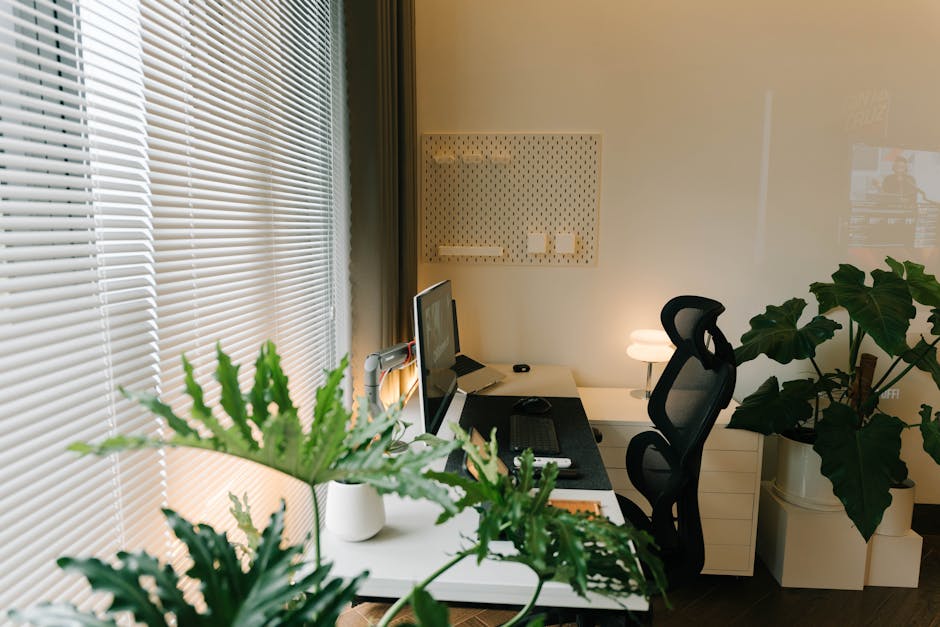
The top of your screen should sit at eye level or just slightly below. A laptop flat on a desk puts your neck at 20–30 degrees of flexion for eight hours. That translates to 20–30 pounds of extra load on your cervical spine, accumulated daily.
An Ergotron LX monitor arm ($45–60) or a Nexstand K2 laptop stand ($35) fixes this in ten minutes. There is genuinely no reason to keep taking this particular hit.
Your Full Desk Setup at a Glance
Getting every component right simultaneously is harder than fixing one thing at a time. This table covers the complete picture:
| Component | Correct Position | Common Mistake | Quick Fix |
|---|---|---|---|
| Chair | Feet flat, knees at 90°, elbows at desk height | Set too high, feet dangling | Adjust seat height + footrest if needed |
| Monitor | Top of screen at eye level, 50–70cm from face | Laptop flat on desk, too close | Monitor arm or laptop stand + external keyboard |
| Keyboard | Elbows at 90–110°, wrists neutral or slight negative tilt | Resting on wrist pad while actively typing | Fold kickstands down, or use a negative-tilt tray |
| Mouse | Same height as keyboard, close to body | Positioned too far out, shoulder constantly reaching | Compact keyboard to close the gap |
| Lighting | Ambient light from the side, no glare on screen | Window directly behind or in front of monitor | Reposition desk or add bias light behind screen |
| Phone | On a stand at desk height, not held during calls | Shoulder-cradling phone on long calls | Headset or speakerphone for any call over 2 minutes |
The desk surface itself matters less than product marketing suggests. A $120 IKEA LINNMON with standard legs works fine when the chair and monitor are dialed in. The Uplift V2 sit-stand desk ($599+) is worth the investment only if you’ll actually use the height adjustment — most people don’t unless they build a deliberate habit around switching positions first.
When a standing desk actually helps
Standing desks reduce pain when you alternate positions, not when you simply stand all day. Standing for eight hours is harder on your legs and feet than sitting. Research on sit-stand protocols points to roughly 30 minutes sitting followed by 30 minutes standing as an effective rhythm. The Flexispot E7 ($379 with surface) has programmable memory presets, which makes it realistic to actually switch rather than manually entering a height each time you want to move.
Four Eye Strain Habits That Cost Nothing

Eye strain is cumulative. You usually don’t notice it until it becomes a headache or blurred near-vision at 4pm. These four habits prevent most of it:
- The 20-20-20 rule: Every 20 minutes, look at something 20 feet away for 20 seconds. This relaxes the ciliary muscles in your eye. It sounds trivial. It genuinely works.
- Match screen brightness to the room: If your monitor looks like a light source — noticeably brighter than everything around it — it’s causing strain. Dim it until it matches the ambient light level. Most people have screens set far too bright and never change the default.
- Enable night mode after 6pm: Night Shift on Mac, f.lux on Windows, or the built-in warm-tone setting on most monitors all work. Blue light doesn’t destroy your eyes, but it does suppress melatonin and affect sleep quality when you’re staring at a cold screen at 9pm.
- Blink deliberately: Normal blink rate is 15–20 per minute. At a screen, it drops to 5–7. Dry, gritty eyes by afternoon are almost always a blink-rate problem first.
The BenQ ScreenBar ($109) is worth naming here. It mounts on top of a monitor and lights the desk without reflecting in the screen. Not essential, but it reduces contrast between a bright display and a dark room — a real contributor to eye fatigue in dim home offices.
One thing to skip: blue-light-blocking glasses. Multiple randomized controlled trials have found no significant benefit for eye strain or sleep quality compared to placebo. The $50 you’d spend on them goes further toward a monitor arm.
Wrist Pain Is Usually About Angle, Not Force
Most typing-related wrist pain isn’t carpal tunnel syndrome — it’s tendonitis from sustained awkward positioning. The fix is neutral wrists while typing: straight, not bent up or down, forearms roughly parallel to the floor.
Most keyboards slope upward by default (positive tilt), forcing wrists into extension. Fine for a few minutes. Over a full workday, every workday, that angle adds up.
Three fixes in order of cost:
- Fold down the kickstands on your existing keyboard. This immediately removes positive tilt. It’s free. Most people have never tried it.
- Logitech ERGO K860 ($130): Splits the keyboard, adds a curved wrist rest, and introduces slight negative tilt. Adaptation takes about a week. A solid option for anyone typing 4+ hours daily.
- Kinesis Freestyle2 ($89): Fully split and separable, letting you tent each half to reduce forearm pronation. More adjustment range than the K860 but no built-in cushioning.
Wrist rests are widely misused. They’re for resting between typing bursts, not for supporting your wrists while actively pressing keys. If you’re leaning on the pad while typing, you’re compressing the carpal tunnel repeatedly. Rest on the off-beats, not during keystrokes.
The mouse creates as much strain as the keyboard
If your mouse sits several inches beyond your keyboard, you’re abducting your shoulder for hours without noticing. A compact keyboard — the Logitech MX Keys Mini at $99 drops the numpad and keeps the mouse significantly closer. A vertical mouse like the Logitech MX Vertical ($99) reduces forearm pronation. Some people adapt immediately; others take months. Try one before committing to a full switch.
Bottom Line: Start by folding your keyboard kickstands flat. If that doesn’t resolve wrist discomfort within two weeks, move to the Logitech ERGO K860. Only go to a fully split keyboard if tented positioning genuinely helps beyond neutral.
A Movement Break Schedule That Fits a Real Workday

Sustained sitting increases back pain and cumulative spine load regardless of how ergonomic the chair is. The fix isn’t a standing desk. It’s movement frequency.
- Every 25–30 minutes: Stand, take 10 steps, sit back down. This resets hip flexors and decompresses lumbar discs. The Pomodoro technique — 25 minutes of focused work, 5 minutes off — maps onto this naturally and has the added benefit of structuring deep work.
- Every 90 minutes: A real 10-minute break. Walk to another room. Do a chin tuck, shoulder rolls, a hip flexor stretch against a wall. Sustained focus also degrades after 90-minute blocks, so this serves both the body and the brain.
- Midday: A 20-minute walk outside. Natural light at midday helps regulate cortisol and afternoon alertness. If you can’t get outside, at minimum change rooms and look at something more than 20 feet away for a few minutes.
Two free apps make this automatic: Time Out (Mac) forces micro-breaks every 25 minutes and full breaks every 90. Stretchly (Windows and Mac) does the same with configurable stretch prompts. Both are consistent in a way that self-discipline rarely is.
What doesn’t work: putting your water bottle across the house to force yourself to walk. It sounds clever. It gets ignored within a week. Timer-based reminders are boring, and that’s exactly why they work.
Three Setup Errors That Quietly Undo Everything
Working from the couch, even occasionally
Soft surfaces let your spine flex in ways a chair — even a mediocre one — prevents. Twenty minutes of sofa-working is fine. Two hours is not. The lower back rounds, the neck strains forward, and none of it gets offset by a good desk chair used the other six hours. If you genuinely don’t have a dedicated desk, the LapGear Home Office Lap Desk ($35) gets your screen higher and keeps the laptop off your legs. It’s not an ergonomic fix — it’s harm reduction until you have one.
Phone face-up on the desk during focus time
Every downward glance at a notification flexes your neck 30–45 degrees for a few seconds. Do that 80–100 times a day — conservative for most people — and you’ve added meaningful cumulative cervical load. Phone face-down or in a drawer during focus blocks. Both the neck and the output quality improve.
Buying gear to avoid addressing existing pain
Morning stiffness that clears within 30 minutes is usually muscular and fixable with setup changes. Pain that takes longer than 30 minutes to resolve, or pain that radiates down an arm or leg, needs a physiotherapy assessment — not a new chair. Don’t spend $500 on ergonomic equipment as a substitute for addressing an injury that’s already there. Optimize a healthy baseline; don’t try to ergonomics your way around a structural problem.
For most people, a well-fitted chair, a monitor at eye level, neutral wrists, and breaks every 30 minutes eliminates the majority of work-from-home physical discomfort. The gear helps. The habits are what make the gear matter.
This is not medical advice. For persistent or worsening pain, consult a physiotherapist or certified ergonomics specialist.